

Biclever MCP — install & configuration
Biclever MCP — install & configuration
Requirements
- SAP BusinessObjects 4.3 SP3 or later, or BI 2025.
- Java 17 or later.
- Network access to your BIP REST endpoint.
- An Enterprise BIP account with permission to create documents in Web Intelligence (see Required permissions below).
- An MCP-compatible client (Claude Desktop, Claude Code, Cursor, etc.).
1. Install Java
We recommend Eclipse Temurin JRE 17 — download the installer and run it.
2. Download and unpack
Download the Biclever MCP zip file and unpack it to a preferred location, for example:
C:\Tools\biclevermcp\
The folder contains biclevermcp.jar and a kb folder for your knowledge base (see step 5). If you have a PRO license, put license.txt in the same folder, next to biclevermcp.jar. Without it, Biclever MCP runs in free mode.
3. Add it to Claude Desktop
In Claude Desktop, open Settings → Developer and click Edit Config — this opens claude_desktop_config.json in your default editor. Add:
{
  "mcpServers": {
    "biclevermcp": {
      "command": "java",
      "args": ["-jar", "C:\\Tools\\biclevermcp\\biclevermcp.jar"]
    }
  }
}
Use your own folder in the path, and write every \ as \\. If the file already has an mcpServers section, add the biclevermcp entry inside it.
Restart Claude Desktop fully (tray-icon Quit, then relaunch).
4. Sign in
The first time you ask Claude about your universes, a sign-in page opens in your browser:
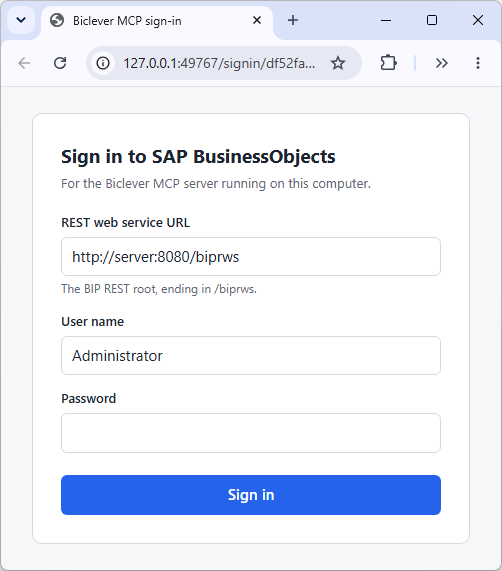
Enter:
- REST web service URL — the BIP REST endpoint (see below).
- User name and password — your BO Enterprise account.
The page is served only to your own computer. The URL and user name are remembered for next time; the password is not stored and is needed again after Claude Desktop restarts. To switch to another BO system or user, ask Claude to sign out.
BIP REST endpoint
If you access SAP BO LaunchPad at:
https://bip-server/BOE/BI
then the BIP REST endpoint is usually:
https://bip-server/biprws
Contact your SAP BO administrator if you are not sure. The URL can normally be found in the Central Management Console under Applications → RESTful Web Service.
5. Add your team’s knowledge (recommended)
The assistant reads the kb folder before it picks a universe or builds a query. Put short Markdown notes there about what the universes don’t say themselves: which universe answers which question, business definitions, filters that must always be applied, value formats and known quirks. Start each note with a one-line description — the assistant sees the list of descriptions and picks which notes to read. kb\README.txt explains what to write. Edits apply immediately; the assistant can read the notes but never change them.
To share one knowledge base across your team, keep it in a network folder and add its location to the Claude Desktop config:
"biclevermcp": {
  "command": "java",
  "args": ["-jar", "C:\\Tools\\biclevermcp\\biclevermcp.jar"],
  "env": { "BICLEVER_KB_DIR": "\\\\fileserver\\bo\\kb" }
}
Required permissions
- Universes: View On Demand access level on every universe you intend to query.
- Web Intelligence application: Full Control access level.
- Custom SQL (
run_custom_sql, PRO): the right to edit query SQL in Web Intelligence. - You do not need write access to any public folder — Biclever MCP never saves documents to the CMS. Queries run inside an in-memory document that is discarded with the session.
Tools
| Tool | Free | PRO | Description |
|---|---|---|---|
kb_list, kb_read, kb_search |
✓ | ✓ | List (with descriptions), read and search the knowledge base. Read-only. |
list_universes |
✓ | ✓ | List CMS universes by name + folder. |
describe_universe(name, …) |
✓ | ✓ | Folders, dimensions, measures, predefined filters with their backslash-joined paths. Large universes: one folder at a time, keyword search, or a folder outline. |
run_query(universe, …) |
preview (10 rows) | full (caller’s limit) |
Ad-hoc query against a universe with optional filter tree. Answers the universe’s prompts. Returns CSV. |
inspect_sql(universe, …) |
✓ | ✓ | Returns the SQL the query would send to the database without executing it. No row cap (no rows returned). |
run_custom_sql(universe, result_objects, sql, …) |
— | ✓ | Runs an edited version of a query’s SQL through the universe’s connection. Must return one column per result object, in order; must start with SELECT (no WITH). |
sign_out |
✓ | ✓ | Signs out; the next call opens the sign-in page so you can switch system or user. |

